Use Rack4 from Claude, Cursor and other AI tools (MCP)
Connect Claude, Cursor or VS Code to Rack4 with MCP, so an assistant can check and manage your servers with your API token.
Rack4 has an MCP server, so AI tools that speak the Model Context Protocol can work with your servers: list them, read a server's firewall, take a snapshot, reboot, set reverse DNS, look at invoices, open a support ticket. It uses an API token, and it can do exactly what that token can do through the API, nothing more.
There are two ways to connect, and both are available:
| Remote (a URL) | Local (a program on your computer) | |
|---|---|---|
| Address | https://my.rack4.io/mcp |
rack4-mcp.mjs, run with Node.js 18 or later |
| Install | Nothing | One file from rack4.io/downloads/mcp/, checked against its SHA256SUMS |
| For | Clients that connect to an MCP server by URL and can send your token in an Authorization header: the setups for Claude Code, Cursor and VS Code are below |
Clients that start a local process, such as Claude Desktop |
The remote server speaks Streamable HTTP without sessions: each request is a POST carrying your token as Authorization: Bearer vps9_..., and the answer comes back as JSON. It has no OAuth sign-in, so a client that can only connect to remote servers through OAuth can't use it. Both ways offer the same tools and answer the same way.
Start with a read-only token
Make a token for the assistant in the panel at my.rack4.io/account/api-tokens. Name it after the tool, like Claude Code or Cursor, and pick read only to start.
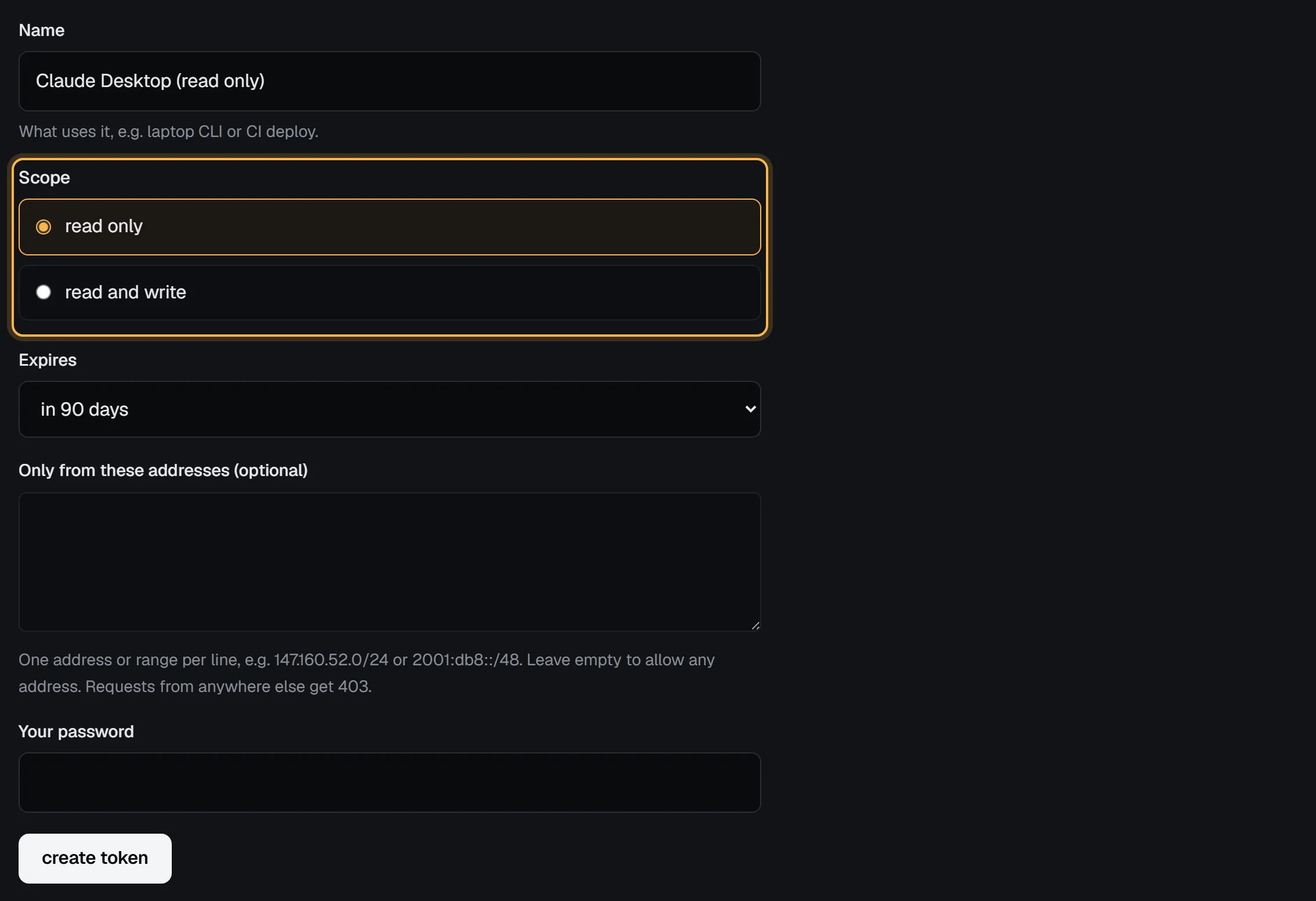
With a read-only token the assistant only sees the tools that look. When you want it to make changes, make a second token with read and write and swap it in. Give the token an expiry, and limit it to your own addresses if your computer's address doesn't change.
Claude Code
Add the remote server with one command. Replace vps9_... with your token:
claude mcp add --transport http rack4 https://my.rack4.io/mcp --header "Authorization: Bearer vps9_..."claude mcp list should show rack4 as connected. Then ask, for example, "list my Rack4 servers". Add --scope user to use it in every project rather than only the current one.
We last checked this on 13 November 2026 with Claude Code 2.1.323 and a read-only token: claude mcp list showed it connected, the server offered the 17 tools that only look (none that change anything), and listing servers worked. A token that isn't known gets a plain 401 that says so. We haven't run the Cursor and VS Code setups below ourselves yet; they follow each tool's documented format.
Cursor
Add this to ~/.cursor/mcp.json (every project) or .cursor/mcp.json in one project, and keep the token in an environment variable named RACK4_TOKEN:
{
  "mcpServers": {
    "rack4": {
      "url": "https://my.rack4.io/mcp",
      "headers": { "Authorization": "Bearer ${env:RACK4_TOKEN}" }
    }
  }
}
VS Code
Add this to .vscode/mcp.json in your project. VS Code asks for the token the first time and stores it encrypted, so it never sits in the file:
{
  "inputs": [
    { "type": "promptString", "id": "rack4-token", "description": "Rack4 API token", "password": true }
  ],
  "servers": {
    "rack4": {
      "type": "http",
      "url": "https://my.rack4.io/mcp",
      "headers": { "Authorization": "Bearer ${input:rack4-token}" }
    }
  }
}
Open Copilot Chat in agent mode and the Rack4 tools are in its tools list.
Claude Desktop
Claude Desktop starts MCP servers as local programs, so it uses rack4-mcp.mjs, a single file that needs Node.js 18 or later and nothing else. Download it from https://rack4.io/downloads/mcp/rack4-mcp.mjs and check it against https://rack4.io/downloads/mcp/SHA256SUMS, like the rack4 CLI:
curl -LO https://rack4.io/downloads/mcp/rack4-mcp.mjs
curl -LO https://rack4.io/downloads/mcp/SHA256SUMS
sha256sum -c --ignore-missing SHA256SUMS
(On macOS use shasum -a 256 -c --ignore-missing SHA256SUMS.) Save it somewhere permanent, then open Settings, Developer, Edit Config and add it to claude_desktop_config.json:
{
  "mcpServers": {
    "rack4": {
      "command": "node",
      "args": ["/Users/you/rack4/rack4-mcp.mjs"],
      "env": { "RACK4_TOKEN": "vps9_..." }
    }
  }
}
On Windows the path looks like "C:\\Users\\you\\rack4\\rack4-mcp.mjs". Restart Claude Desktop; Rack4 appears under the tools button in a new chat.
The local server takes two more settings. --read-only in args (or "RACK4_MCP_READ_ONLY": "1" in env) offers only the tools that look, whatever the token allows. RACK4_API_URL points it at another API address, which you won't normally need.
What the assistant can do
| Area | Tools |
|---|---|
| Account and catalog | get_account, list_ssh_keys, add_ssh_key, list_images, list_apps, get_prices, get_status |
| Servers | list_servers, get_server, create_server, power_server (start, stop, reboot), reinstall_server, delete_server, update_server_details |
| Snapshots | list_snapshots, create_snapshot, revert_snapshot, delete_snapshot |
| Network | get_firewall, set_firewall, list_reverse_dns, set_reverse_dns, clear_reverse_dns |
| Billing | get_addons, change_addons, get_billing_summary, list_invoices, get_invoice |
| Support | list_tickets, get_ticket, open_ticket, reply_to_ticket |
There are also two ready-made prompts, check_server (looks over one server and reports what needs attention) and review_spending (what each server costs and where you could save), and each server is readable as a summary at vpsnine://servers/<id>. Neither changes anything.
Safety: what asks before it runs
The assistant acts as your token, so it can't do more than the token allows: a read-only token can't change anything, a team member's token is limited by their role, and an address-limited token only works from those addresses. Every tool call is an API request, with the same rate limits and a request id you can give support.
On top of that, the tools that cost money or destroy data stop first:
- create_server and change_addons, called without
confirm: true, only answer with the price and do nothing. The assistant is told to show you the price and call again withconfirm: trueonly if you agree. An order makes an invoice; the server is built once you pay it. The order's price answer also gives an idempotency key to send with the confirmed call, so a retry can't order twice. - reinstall_server, delete_server, revert_snapshot and delete_snapshot, called without
confirm: true, only say what would be lost. To go ahead the call needsconfirm: trueand the server's hostname typed back, and we check the hostname against the server. A missing or wrong one does nothing.
What confirm: true does and doesn't prove: our server checks that the flag is there, that the hostname matches, and that the token is allowed to make the change. It can't see your screen, so it can't tell whether you saw the price or the warning, or whether the assistant asked you at all. A call sent with confirm: true straight away goes ahead. Making sure you're asked is up to the AI tool and the model, so keep your tool's own approval prompt on for anything that changes your servers, and use a read-only token whenever the assistant only needs to look. The token's permissions are what really limit it. Root passwords can't be set through MCP, so a password never ends up in a chat; new servers use your SSH keys. Every change is in your activity log, marked as made through the API via MCP.
If a token might have leaked, or you stop using an assistant, revoke its token in the panel. It stops working at once.
When it doesn't connect
- 401 unauthorized: the token is wrong, revoked or expired. Check it starts with
vps9_and that nothing was cut off when you pasted it. - 403 ip_not_allowed: the token only works from certain addresses, and this request came from another.
- Only read tools show up: the token is read only.
- 405 method_not_allowed: the client tried to open a stream or a session (
GETorDELETE). The remote server takesPOSTonly; pick the HTTP (Streamable HTTP) transport, not SSE. - 429 rate_limited: the assistant made too many calls in a minute. It can try again after the time the error gives.
Anything else comes back with a request id like req_7d2kq4m5x3n6p2r4s7t2v3w4. Put it in a support ticket and we can find the request.