Open and manage support tickets
Open a Rack4 support ticket, follow it in the panel or by email, attach files, reopen it, and rate the answer once it's closed.
To ask us something, open Support in the panel and choose new ticket. Say what it's about and how urgent it is, pick the server if there is one, and describe the problem. We answer in the ticket's thread and email you when we do, and you can answer in the panel or by replying to the email.
What you need
- A Rack4 login. On a team, the owner, admins, billing and technical members can open and answer tickets; read-only members can read them.
- If you can't log in at all, email support@rack4.io from the address on your account (see Open a ticket by email). hello@rack4.io reaches us too, but support@ turns your email into a ticket.
Open a ticket
Open Support and choose new ticket.
Write a short Subject (3 to 120 characters, one line).
Pick What is it about?:
Category For Technical a server, the network, the panel or the API Billing invoices, payments, credit, refunds Sales plans, prices, custom setups Abuse a report about one of your servers, or one you want to make My account login, 2FA, email Something else anything that doesn't fit Pick How urgent is it?: Low (a question, no rush), Normal, High (something important isn't working) or Urgent (a production server is down).
Under Server (optional), pick the server it's about, if any (see what we see of your server).
Write your Message, add files if they help (see Attach files), and choose send.
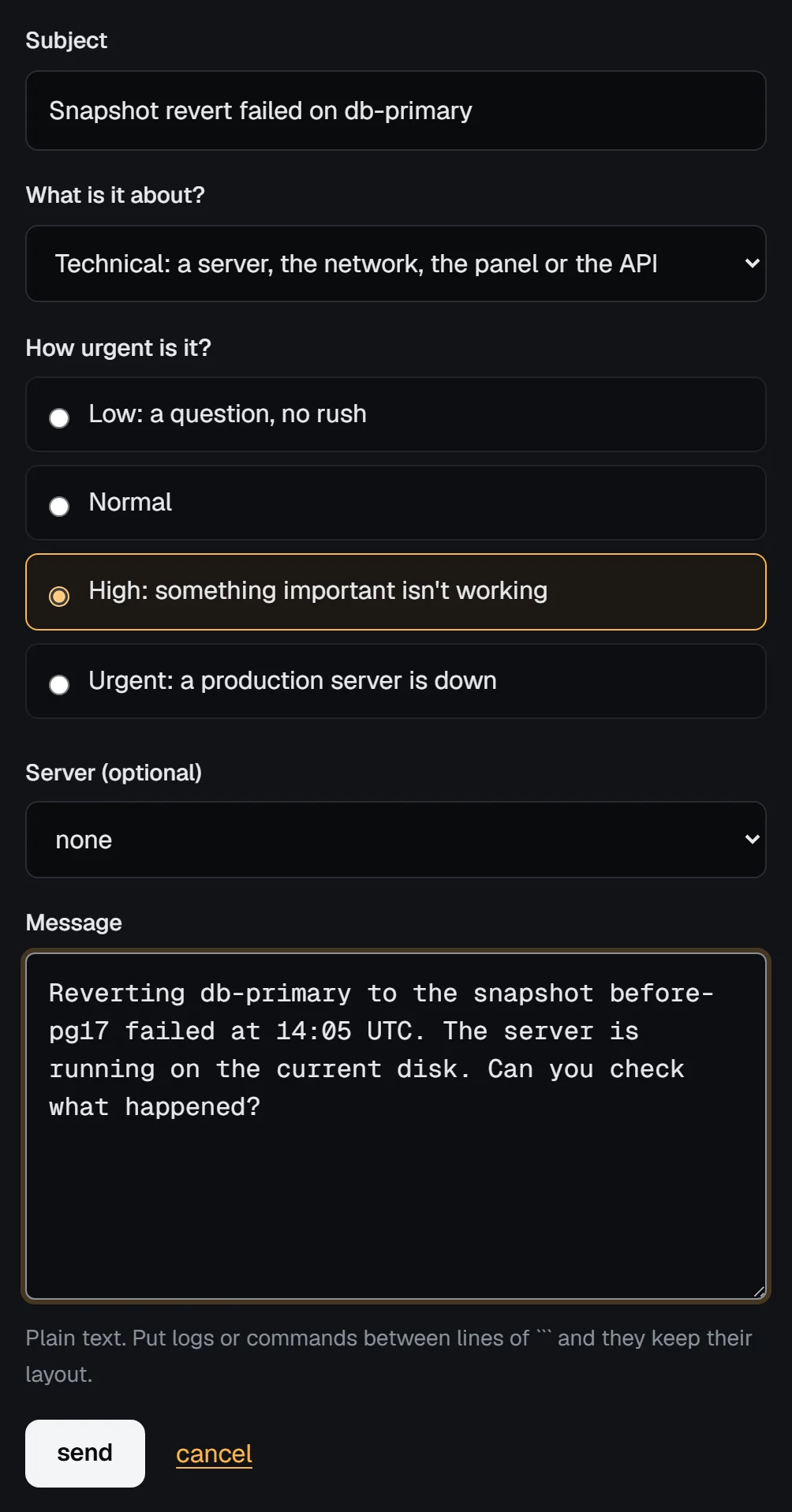
Messages are plain text, up to 10,000 characters. Put logs or commands between two lines that hold only three backticks (```), and they keep their layout. What to include in a support ticket lists what helps us answer first time.
Never send a password, a private SSH key or an API token in a ticket. We don't need them. To look into your account, our staff can view the panel as you see it, read-only and for at most 30 minutes; Sessions and activity explains how that works.
Other ways in:
- On a server's page, Get help with this server opens the form with that server already picked.
- Every help guide ends with Still stuck? Open a ticket. The form then says which guide you were reading, and our staff see it with your ticket, so you don't have to repeat what it says.
Suggestions while you type
As you write the subject and message, the form shows help guides that may already answer the question, and suggests a category if the one you picked doesn't sound right. Open a suggestion in a new tab; if it answers the question, there's nothing to send. If not, send the ticket as usual. We count which guides were suggested and clicked, without your name or what you typed, to see which guides answer questions and which need work.
Open a ticket by email
Email support@rack4.io from the address on your Rack4 account and we open a ticket for you, filed under Something else, with the email's subject as its subject. For that:
- the account must be active and its email address confirmed;
- the email must really come from your address: we check its domain's DMARC result, so mail forwarded through another service may not get through.
Anything else, such as an email from an address that isn't on an account, or one that's empty once the quoted text is taken out, doesn't open a ticket: it stays in the inbox for a person to read. The panel always works.
Reply by email
Every email we send about a ticket can be answered by replying to it. Your reply lands in the ticket's thread, as if you'd typed it in the panel.
- Write above the line. Our emails start with a line that says to reply above it. Write your answer above it, and we take only what you wrote: the quoted thread below, your signature and lines like "Sent from my phone" are removed.
- Reply from your account's address. Replies are added when they come from the address on your Rack4 account, or, on a team, from the owner's address that our ticket emails go to. A teammate's own address isn't accepted. A reply from any other address isn't added, and our staff are told about it rather than you.
- Closed tickets. A reply to a ticket that can reopen opens it again, and a short "thanks" is added without reopening it. A reply to one that can't, for example one closed more than 14 days ago, opens a follow-up ticket that names the old one, so we see both.
- Empty replies. If nothing is left once the quoted part is taken out, nothing is added, and we email you to say so.
- Many replies at once. Emailed replies count towards the same 30 an hour as replies in the panel. Past that, the email isn't added, and our staff are told.
Attach files
You can attach screenshots, logs and other files to a ticket: when you open it, and to any reply, in the panel or by email.
| Limit | |
|---|---|
| Per file | 10 MB |
| Per message | 5 files |
| Per ticket | 50 MB in all |
| Per account | 200 MB in any 24 hours |
| An emailed reply, files included | 70 MB |
- What's taken: images (PNG, JPEG, GIF and WebP, shown as thumbnails in the thread), PDFs, text files such as logs, configs, JSON, YAML and CSV, and archives (
.zip,.gz,.tgz,.tar). We check what a file really is from its contents, not its name. - What's refused: programs and scripts (
.exe,.sh,.py,.jsand the like), installers, disk images, HTML and SVG, whatever they're called. - A confirmed email address is needed to send files. Confirm it under Account, then Email.
- In the panel, if any file is refused, nothing is sent and the form says which file and why. Fix it and send again.
- By email, files that aren't taken (a refused type, too big, over a limit, or an unconfirmed address) are left out, and your words are still added with a note saying which files weren't. Small images inside a signature are skipped. An email over 70 MB isn't added at all: if it's a reply to one of your tickets, we email you once to ask you to attach the files in the panel.
Only you, your team and our staff can open a ticket's files. Check a log for passwords, tokens and private keys before you attach it, and cut them out.
Statuses and response times
Support lists your tickets with their status, last activity and the newest message. A new reply tag marks a reply you haven't opened yet. Use Open and Closed to filter the list, and the search box to find a ticket by a word in its subject or messages.
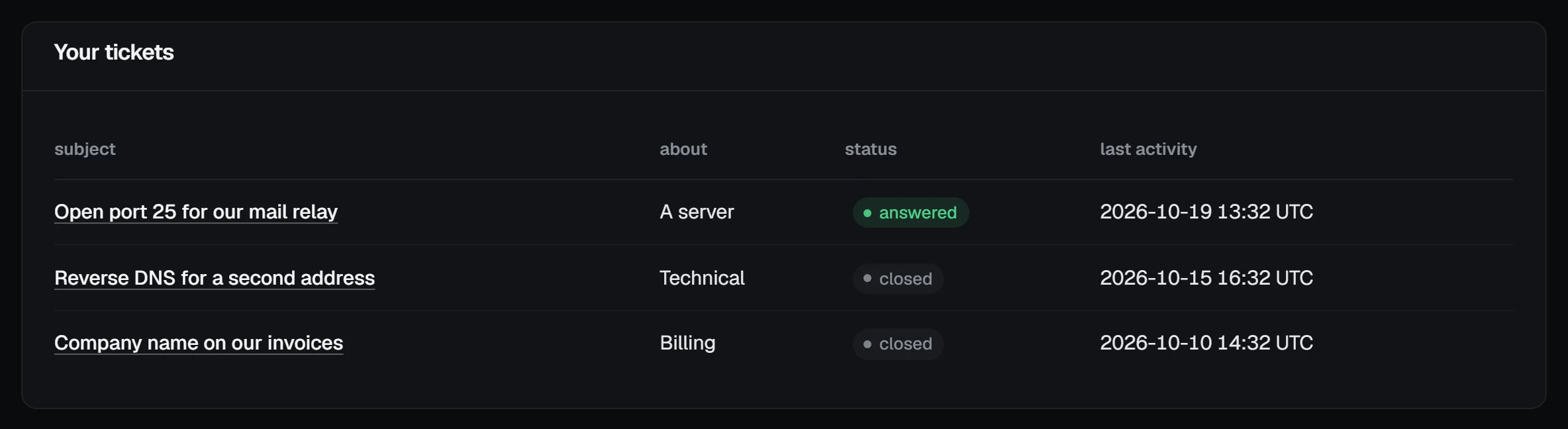
| Status | Means |
|---|---|
| Waiting on us | Open: it's our turn. The ticket's page says how soon we usually reply at its priority. |
| Waiting on you | We replied and the next move is yours. Your reply makes it waiting on us again. |
| Closed | Done, by you, by us, or automatically. See Reopen a closed ticket. |
Sometimes we reply and keep a ticket waiting on us, for example while we look into something. It then stays open until we reply again.
How soon we usually reply, from your latest message:
| Priority | Usually within |
|---|---|
| Urgent | 2 hours |
| High | 8 hours |
| Normal | a day |
| Low | 2 days |
These are targets, not guarantees. Support response times says more about priorities. Before you write about an outage, check rack4.io/status: if it's a known incident, its updates are posted there.
When a ticket waits on you
When we've replied and the ticket waits on you, we email a reminder after 3 quiet days. If there's still no reply, the ticket closes itself after 7 days, and at least a day after the reminder, and we email you to say so. That's not a judgement: replying reopens it, within the limits below.
A ticket that has waited on you for more than 14 days (say our reminders couldn't go out) closes without any email, so nothing reaches you weeks late.
Follow the thread
Open a ticket to read the thread and reply:
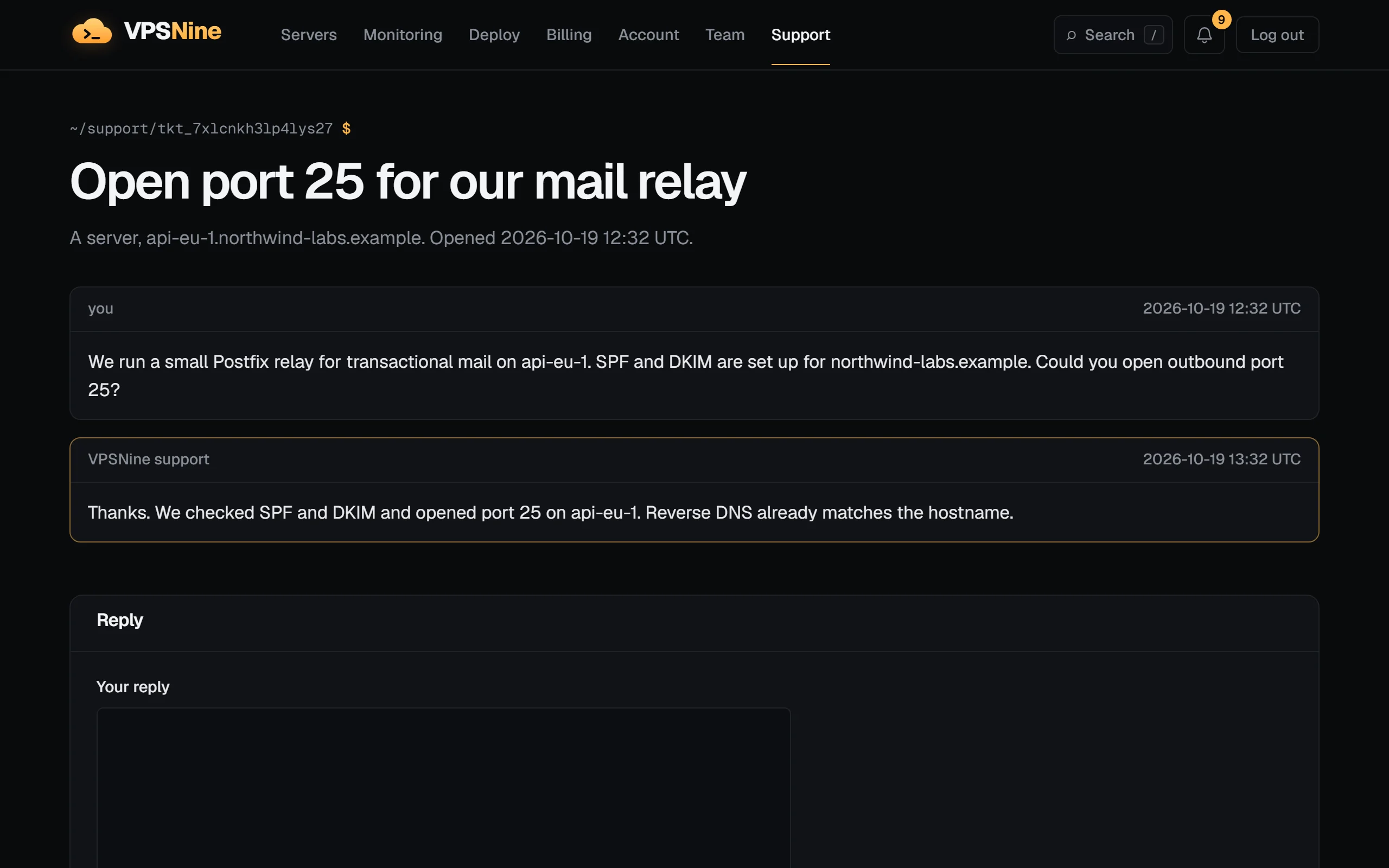
- Live updates. While the page is open, new replies show up by themselves, without a reload.
- Drafts. The reply box keeps what you're writing in this browser until you send it, for up to 7 days.
- Server. Link a server (or change it, or pick none) with the Server menu under the reply box.
- Close. Choose close this ticket when you have what you need.
We email you each time we reply, unless you turned support email off in notification settings. The reply also shows in the panel's bell.
What we see of your server
When a ticket is linked to a server, our staff see a read-only snapshot of it, taken when you open the ticket with the server picked, or link it later:
- its hostname, state and since when, plan, size (vCPUs, memory, disk), IP addresses, and the host it runs on;
- its last few events, as on its page (power actions, reinstalls, snapshots);
- its last few jobs on the host, by kind and result.
It never includes passwords, keys, the contents of the disk or anything about other customers.
Reopen a closed ticket
Within 14 days of a ticket closing, a reply opens it again, with the whole thread. The closed ticket's page says until when: write in the reply box and choose reopen and send, or reply to any of our emails about it.
Some tickets don't reopen. A reply to one of these takes a follow-up instead:
- a ticket closed more than 14 days ago;
- an abuse report;
- a ticket we closed for good (we say so when we do);
- a ticket you've already reopened 3 times.
A short reply like "thanks, all sorted" within the 14 days is added to the ticket without reopening it. A ticket we merged into another one sends your replies to that one.
For a follow-up, choose open a follow-up on the closed ticket's page (or just reply to its emails): the new ticket names the old one, so we see both.
A closed ticket's page may also list a few help guides that match its subject, under You might find these useful, in case the same question comes up again. The emails we send when a ticket closes list them too.
Rate the answer
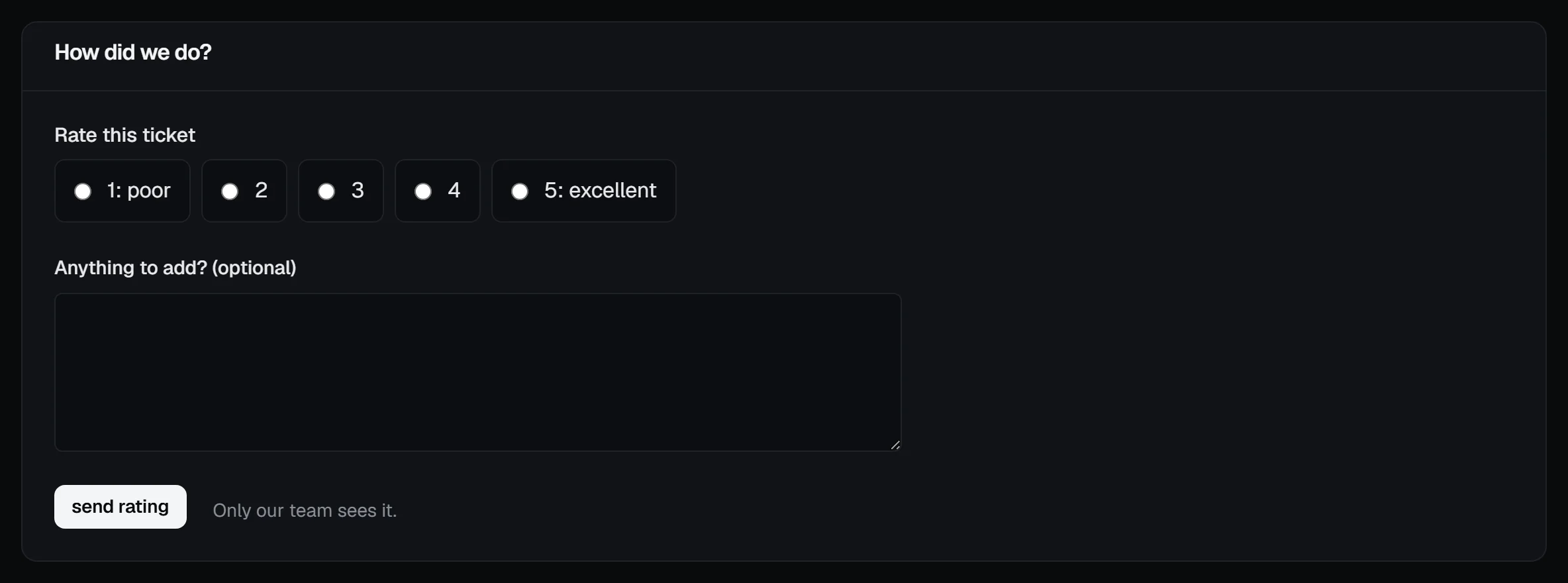
Once a ticket is closed, its page asks How did we do?. Pick 1 (poor) to 5 (excellent), add a comment if you like, and choose send rating. You can rate each ticket once, and only our team sees it.
We also email you the five choices once per ticket: when it closes itself, or about an hour after we close it. A click opens a page with that score picked, where you can add a comment and send it; nothing is saved until you do. The links work for 30 days.
From the API or the CLI
rack4 tickets
rack4 tickets open --subject "Reverse DNS for web-1" --category technical --priority normal --server web-1 "Please set PTR for the main address."
rack4 tickets show tkt_abcdefghijkl2345
rack4 tickets reply tkt_abcdefghijkl2345 "Thanks, that worked."
rack4 tickets close tkt_abcdefghijkl2345
The API has the same calls under /api/v1/tickets (list, open, show, reply, close). Reading needs a read token; opening, replying and closing need read and write. See API tokens.
Troubleshooting
- "You've opened a lot of tickets in a short time." You can open 5 tickets an hour and 20 a day. Add to a ticket that's already open instead.
- "That's a lot of replies in an hour." The limit is 30 replies an hour.
- "This ticket can't be reopened." It's one of the tickets that don't reopen. Choose open a follow-up on its page.
- A file wasn't taken. Check its type and size against Attach files, and that your email address is confirmed. Share anything bigger with a link.
- My emailed reply didn't show up. Check it was sent from your account's address, and that you wrote above the line.
- No email when we reply. Check spam, then the Support row in notification settings. The thread in the panel always has the reply.