Create your Rack4 account
Sign up at my.rack4.io, pick a password that passes the checks, and confirm your email. You can make an account before you're ready to order.
Make your account before your first order. Turn on two-factor authentication and save your SSH keys while you're there, so ordering your first server takes a couple of minutes.
Sign up
- Go to my.rack4.io/signup.
- Enter your email address, then a password twice (Password and Confirm password).
- Read the policies before creating an account, then tick the box that names the Terms of Service, the Acceptable Use Policy and the Privacy Policy. The Acceptable Use Policy explains which activities can lead to suspension.
- Choose create account.
You're signed in straight away. If you came from an Order link (on rack4.io/plans, say), you go straight to the order form with your choices kept; otherwise you land on the Servers page. We email you a link and a 6-digit code at the same time. You don't need them to look around, add SSH keys or turn on two-factor, but you do before you pay by card or make an API token. You can order and pay with Bitcoin or USDT straight away: the server is built as soon as you confirm. On the order form a box under the order button takes the code, or open the link on any device. Confirm your email address has the details.
If the address already has an account, you're taken to the login page instead, with a note saying so, and we email that address too. Log in there, or reset the password if you've forgotten it.
Picking a password
The form refuses a password that's:
- shorter than 12 characters (the limit at the other end is 256);
- on our list of common passwords;
- the same as your email address.
Let a password manager generate one if you can. If you'd rather type it, four or five random words strung together are long, easy to type, and hard to guess. Just don't reuse a password from another site.
Check it worked
After create account you're in the panel with your email address in the account menu. Until you confirm your address, a banner at the top of every page but the order form says Confirm your email address, with a box for the code and a send a new link button.
Once you're in
The Servers page says "No servers yet" until you order one. If orders aren't open yet, or you're not ready, two things are worth ten minutes now:
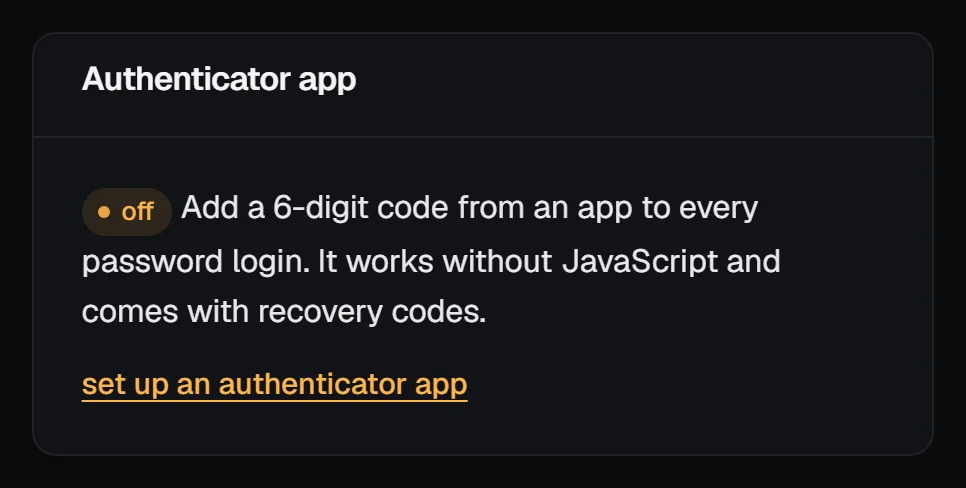
- Turn on two-factor authentication.
- Add your SSH key, so it's ready for your first server.
The security center, under Account → Security, checks your sign-in settings and links to each step:
If the form says Too many attempts and how long to wait (up to an hour), it's because sign-ups are limited to 5 an hour per network address. If something else goes wrong before you can log in, email hello@rack4.io instead of waiting. Once you're in, open a support ticket from the panel's Support page.
Next steps
- Confirm your email address
- What happens when you order
- Compare the plans and distributions