Server settings: name, tags, notes, billing term and the danger zone
The Settings tab of a server: give it a panel name, tags and private notes, switch monthly or yearly billing, cancel it, and reinstall or delete it.
Everything about a server that isn't day-to-day lives on its Settings tab, the last tab on the server's page. It opens on General, which has Name, tags and notes, Billing (monthly or yearly, and cancelling), Deletion protection, the Power schedule in a line, and the Danger zone with reinstall and delete. The links under the tab lead to its other two pages: Add-ons (add-ons) and Power schedule (scheduled reboots and off hours).
What you need
- A server, open in the panel. Click it on your servers page, then Settings at the end of the row of tabs.
- To change billing or delete, the account owner's login or a team role allowed to. Teams lists the roles.
Name, tags and notes
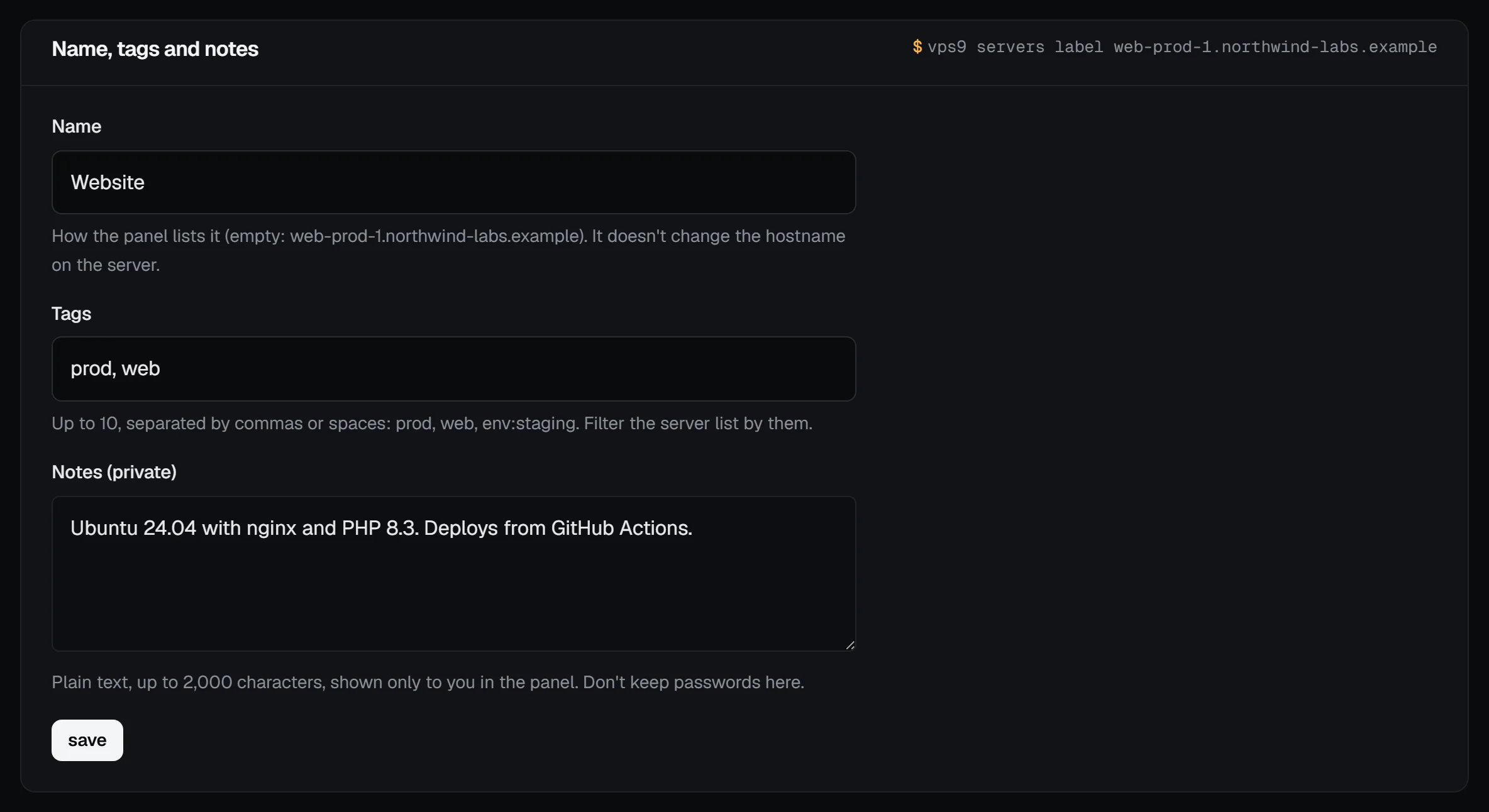
- Name: how the panel lists the server, up to 63 characters, like
WebsiteorShop front. Leave it empty to show the hostname. It doesn't change the hostname inside the server, which was set on the first boot; to change that, log in and runhostnamectl set-hostname. - Tags: up to 10, separated by commas or spaces. Each is 1 to 24 letters, digits, dots, dashes, underscores or colons, starting with a letter or digit (capitals are lowercased), so
prod,webandenv:stagingall work. - Notes (private): plain text, up to 2,000 characters, shown only in the panel. Good for what runs there and who to ask. Don't keep passwords there.
- Press save.
Check it worked: the header now shows the name and tags, and on the servers page you can filter by the tags. The command palette finds the server by its name and tags too.
From a terminal, rack4 servers label <server> "Shop front" --tags prod,web does the same, and the API has PUT /servers/:id/details.
Billing
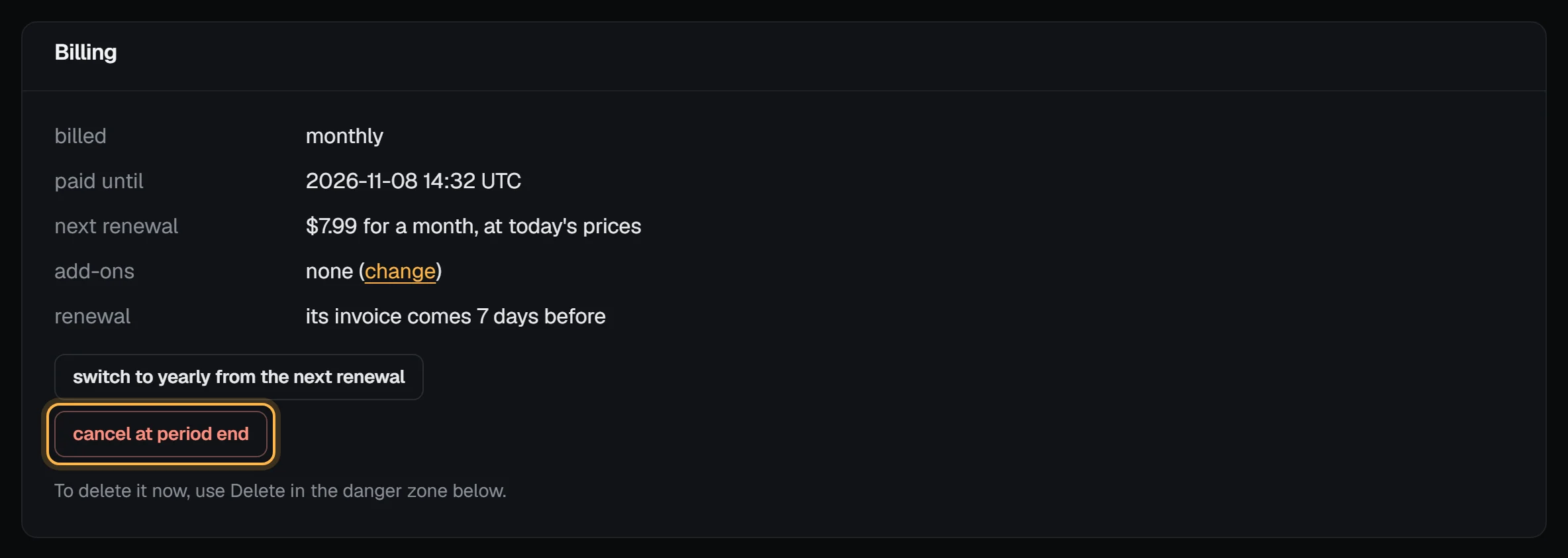
- billed and paid until: the term and the end of the period you've paid for.
- next renewal: what the next period will cost at the server's own price (it keeps the price it was ordered at), and when its invoice comes (7 days before paid until).
- add-ons: what's added to the plan, with a link to change them.
Switch between monthly and yearly
Press switch to yearly from the next renewal (or switch to monthly… on a yearly server). Nothing changes for the period you've already paid; the next renewal invoice is for the new term. If that invoice has already gone out, the switch starts with the one after. Press the button again to switch back before then. The button only shows when the plan has a yearly price. For prices, savings and what happens to add-ons, see Switch a server to yearly billing.
Cancel at the end of the period
Press cancel at period end and confirm. The server keeps running until paid until, no renewal invoice comes, and then the server, its disk and its snapshots are deleted. Press keep this server any time before that date to undo it. Cancel a server covers what to back up first.
If the paid period has already ended (the renewal is overdue), there's no end of period left to cancel at, and the box says: "This server's paid month has ended. Pay the renewal to keep it, or delete it now."
Deletion protection and the power schedule
- Deletion protection: press turn on and the server can't be deleted, reinstalled or reverted to a snapshot, from the panel, the API or the CLI, until you turn it off again (which asks for your password, and your second factor if you use one). Protect a server from deletion has the details.
- Power schedule: scheduled reboots and off hours, with a link to the Power schedule page to change them. Schedule reboots and power windows explains it.
The danger zone
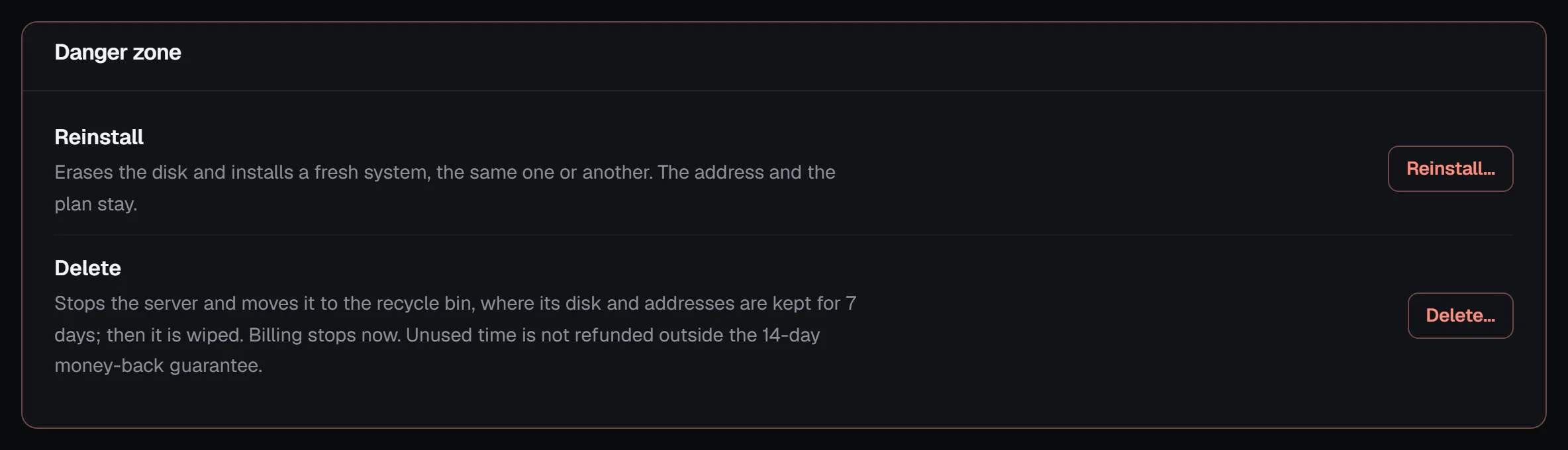
- Reinstall… erases the disk and installs a fresh system, the same one or another. The addresses, the plan and the billing stay. Reinstall a server has the steps.
- Delete… stops the server and moves it to the recycle bin, where its disk and addresses are kept for 7 days before it's wiped. Billing stops at once, and unused time isn't refunded outside the 14-day money-back guarantee. Cancel a server explains what's deleted and what happens to billing.
When a button says "not in this state", the server is busy with another action, suspended or being built. Wait for the action to finish, or pay the open renewal first. When it says "deletion protection is on", turn protection off first.
Troubleshooting
- "Use at most 10 tags." Remove some: a server takes 10.
- "… isn't a tag." A tag is 1 to 24 letters, digits, dots, dashes, underscores or colons, starting with a letter or digit. A space starts a new tag, and capitals are lowercased for you.
- The switch to yearly button is missing. The plan has no yearly price yet, or the server is set to be cancelled. Press keep this server first.
- "Being deleted: it can't be kept any more." The deletion has started. If that's a mistake, open a support ticket straight away; a deleted disk can't be recovered.
Next steps
Doing it on Rack4
Monthly and yearly prices for each plan are on rack4.io/plans. Yearly costs less than twelve months.